Getting started
One pip install, one pytest run, one HTML file. This is the whole path from nothing to a report, plus the four options worth knowing about on the first day: where it goes, what it is called, whether it opens itself, and how long the history is kept.
Install it
pytest-html-reporter is a pytest plugin, so it installs like any other package and needs no
wiring. setup.py asks for Python 3.5 or newer and pulls in two dependencies:
pytest itself, with no version ceiling on it, and Pillow, which the
plugin uses to handle the screenshots it captures.
There is no import to add and no configuration file to write. The package registers itself
through pytest's pytest11 entry point, which means the next pytest you
run already has the reporter attached to it.
-
Install the plugin
From PyPI, into whatever environment your tests already run in.
shell Install from PyPI$ pip3 install pytest-html-reporter -
Run the suite you already have
Exactly the command you ran yesterday. No flag is required for a report to be written.
shell A folder for the report is the one thing worth adding$ pytest tests/ --html-report=./report -
Read it
The report opens in your browser on its own when the run finishes, because you are sat there watching the run. Nothing needs to be passed to get that, and nothing opens on a build agent. If you would rather open it yourself, it is a plain file on disk: double-click it, mail it, or publish it as a CI artifact. It carries its own CSS and JavaScript, so it needs no server and no network to render.
The default run
With no flags at all, the plugin writes two files into your project's home directory — the
directory you started pytest from:
pytest_html_report.html— the report.output.json— the machine-readable record of this build. TheArchivesandAnalyticstabs are built by reading these back, so it is not a by-product you can delete.
Give --html-report a folder and both files move into it, which is what most
people do on the first run so that the report is not sitting in the repository root:
$ pytest tests/ --html-report=./reportAfter a second run the folder looks like this. Each previous build's record is moved into
archive/ and named after the moment its run started, which is what lets an age limit
still measure the right thing after the folder has been copied into a fresh CI workspace.
report/
├── pytest_html_report.html
├── output.json
└── archive/
└── output_1788428663.202345.json--html-report, the
plugin takes your project's home directory as the base. Nothing is created for you above it — a
path you pass is created if it does not exist.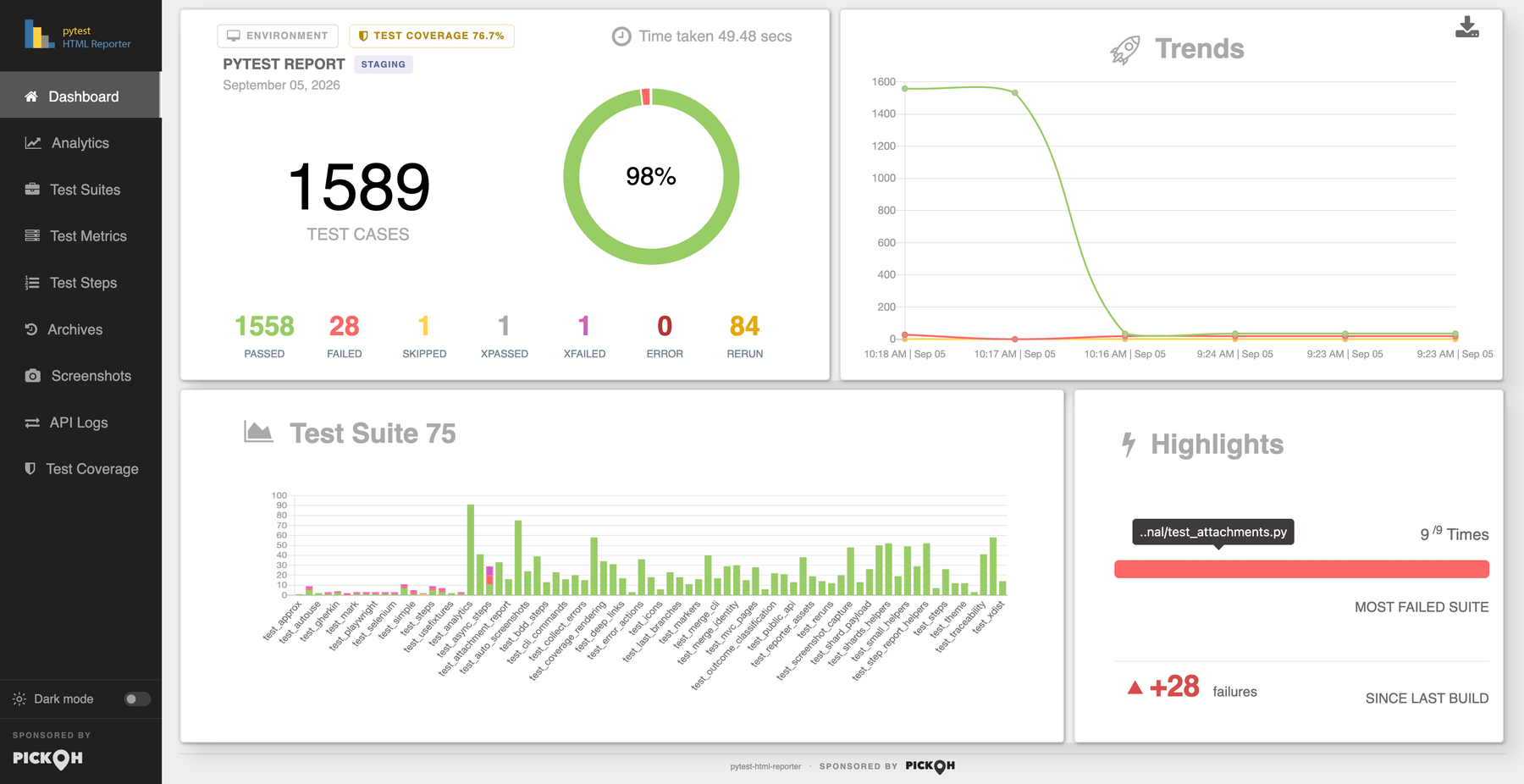
What is in that file
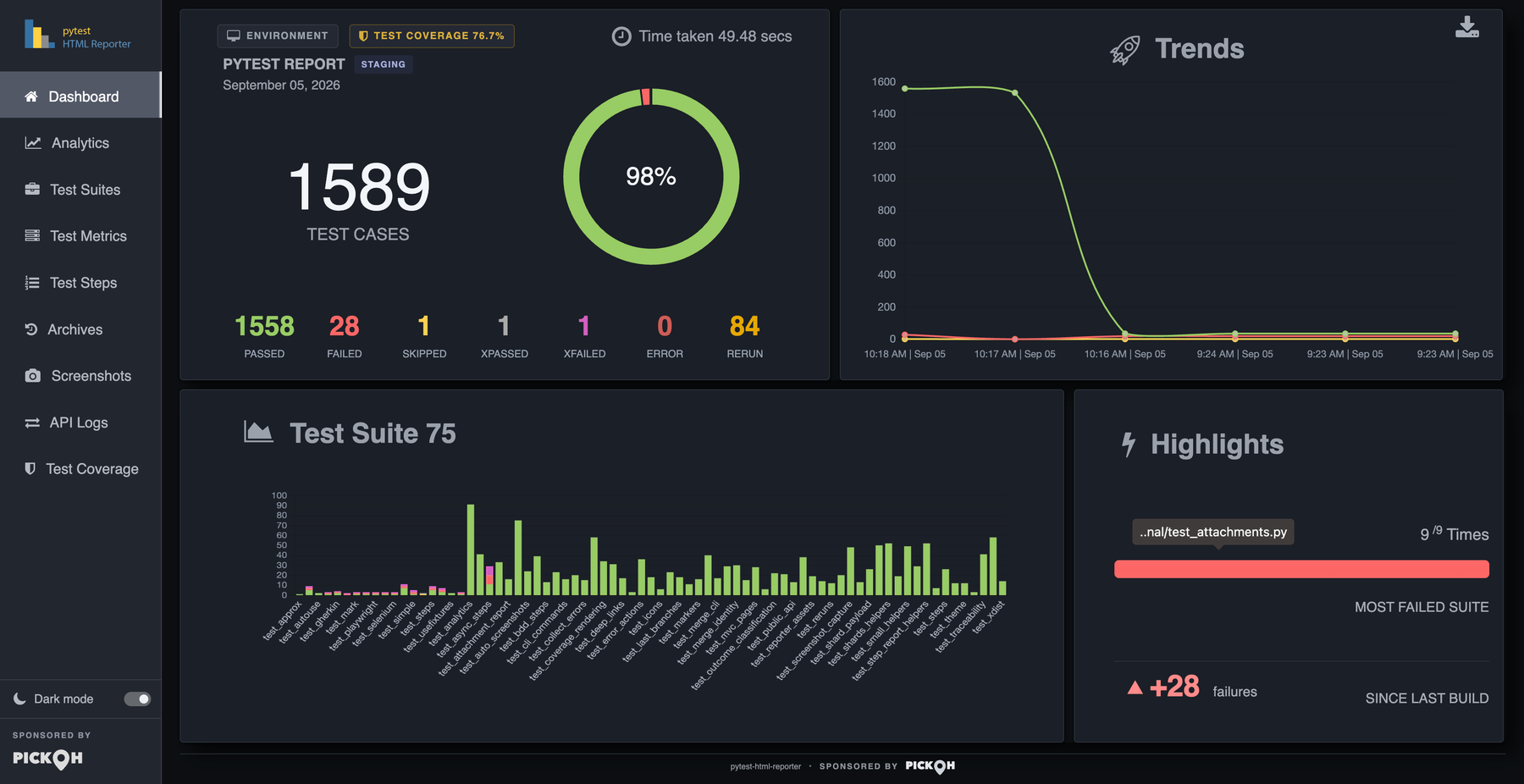
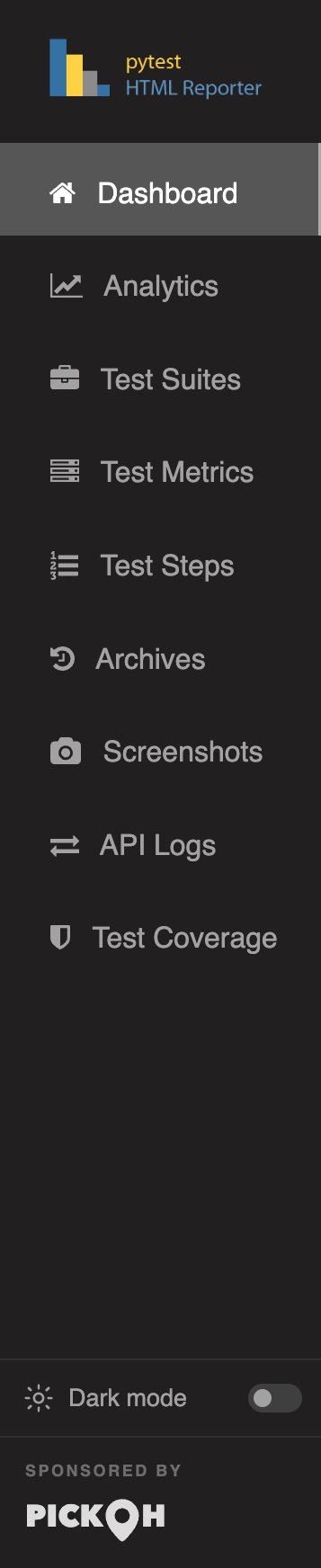
The single file you get is a small application. The side nav down the left switches between these, and every one of them is populated by the ordinary run you just did — no extra flag, no hook, no import:
- DashboardThe overview, the environment the run was made in, the trend across previous builds, the highlights — the most failed suite, and the failure delta since the last build — and the suite-by-suite detail.
- Test SuitesOne row per suite, with its passes, failures, skips, xpasses, xfails, errors and reruns counted side by side.
- Test MetricsEvery test as a row, with its status, its duration, its error message, and columns for the logs, the screenshots and the data it attached.
- ArchivesThe previous builds this folder still holds, which is also what the trend and the analytics are computed from.
- ScreenshotsA test that fails while holding a Selenium driver or a Playwright page is photographed for you, with nothing to write in the test.
- API LogsThe payloads a test hands over — a response, some JSON, a file, free text — kept against the test that produced them.
- Test StepsNever empty: every test has a set up, a body and a tear down, each timed, before you name a single step of your own.
- Test CoverageThe percentage, the split by file and the trend across builds, read from whatever measured it.
- AnalyticsFlaky tests, standing failures, failures grouped by exception and pass-rate drift, read across every archived build.
Two things you get without asking are worth knowing about on day one, because they explain
columns you will notice immediately. Everything pytest captures while a test runs —
stdout, stderr and logging — is kept against that test and
opened from the Logs column. And a failing browser test is photographed at the very
end of the test, before the fixture that quits the browser has run.
The full walk through each of those tabs, with what every column and chart means, is the report tour.
Where the report goes, and what it is called
One flag decides both. --html-report takes a directory, or a directory and a
filename — the filename is the part ending in .html.
Give it a folder and the report keeps its default name inside that folder. Give it a path
ending in .html and it uses both. Skip it and your project's home directory is
the base.
$ pytest tests/ --html-report=./report
$ pytest tests/ --html-report=./report/report.html
A folder, or a filename, per run
The path is run through strftime, so date and time placeholders —
%Y, %m, %d, %H, %M and the
rest — give each run a folder or a filename of its own instead of overwriting the last one.
$ pytest tests/ --html-report=./reports/%Y%m%d/report_%H%M.htmlThey are expanded once, when the run starts. That is what stops a
pytest-xdist run — four processes, four clocks — from writing four reports, and what
stops a run that crosses a minute boundary from starting a second file halfway through.
%% for a literal percent
sign in front of a letter. A % that is not a placeholder, as in
100% pass, is left exactly as it is.The title
--title sets the heading at the top of the report. It is capped at 20 characters;
the cut tail fades out rather than being chopped, and the full title is kept as the heading's
tooltip, so a long name is still readable on hover.
$ pytest tests/ --html-report=./report --title='PYTEST REPORT'Putting it in pytest.ini instead
Anything you would type on every run belongs in the ini file, where it applies however the suite is started — from your shell, from an IDE, from a CI job. Nearly every flag on this page has an ini key of the same name with underscores.
$ pytest tests/ --html-report=./reports/%Y%m%d/report_%H%M.html --archive-days 30[pytest]
addopts = -v -rf --title='PYTEST REPORT'
html_report = ./reports/%Y%m%d/report_%H%M.html
archive_days = 30html_report takes the same value as the flag, placeholders included, and is the
way to set the report location without going through addopts.
--title has no ini key of its own, so it goes in addopts — which is
where the project's own snippet puts it.
The rule when both are set is uniform: the flag overrides the ini key. The two
exceptions are --build-info and --report-link, whose entries are
added to the ini file's rather than replacing them.
When one ini block is not enough — because the suite is run one way on a laptop and another way on
CI — write each shape down under a name instead. From 0.4.3 a
named profile holds a whole set of these keys, and
pytest --report-profile=ci picks one.
Opening the report
When the run finishes, the report is opened in your browser. Nothing is needed to get this — it is what the command you already run now does.
It only happens on a run somebody is sat in front of. Three things all have to be true, and a build agent fails every one of them:
| Checked | Why |
|---|---|
| The run's output is a terminal | Output piped into a file or a log collector — cron, nohup, a
build system nobody has heard of — means nobody is watching it go past. |
| No CI variable is set | CI, GITHUB_ACTIONS, GITLAB_CI,
JENKINS_URL and the rest of the usual set. CI=false counts as
"not CI". |
| There is a desktop to open into | DISPLAY or WAYLAND_DISPLAY, on anything that is not macOS or
Windows. Without this, a headless box opens the report in a console browser, on
top of the summary the run just printed. |
--report-open sets which of that applies.
$ pytest tests/ --report-open=none      # never open it
$ pytest tests/ --report-open=always    # open it whatever the run looks like
$ pytest tests/ --report-open=auto      # the default, as described above
Turning it off for good belongs in the ini file rather than in every command:
[pytest]
report_open = none
The browser is asked for a tab rather than a window, so a suite run over and over does not bury the desktop. And a machine with no browser on it is not an error: the report is written either way, and a run that could not open it still passes or fails on its tests alone.
Keeping the history from growing
Every run leaves its record behind, and those records are the trend line, the
Archives tab and everything the Analytics tab knows. Set no limit and
every build is kept for ever, which is what eventually makes a report slow to open — a retained
build costs roughly 5KB of the page, so an hourly run reaches a multi-megabyte
report inside a couple of months.
Three flags cut it back. They intersect: a build has to satisfy every one you set to be kept.
| Flag | Takes | What it keeps |
|---|---|---|
--archive-count |
an integer | The last N builds shown in the Archives section. |
--archive-days |
a number of days | Only the builds from the last N days; the rest are deleted. Fractions are allowed —
0.5 is half a day. |
--archive-since |
a date, or a date and time | Everything older than that moment goes. A one-off cut rather than a rolling window. |
$ pytest tests/ --html-report=./report --archive-count 7
$ pytest tests/ --html-report=./report --archive-days 30
$ pytest tests/ --html-report=./report --archive-since '2026-06-01 09:00'
A run on a schedule usually wants a stretch of time rather than a build count, so
--archive-days is the one that needs no retuning when the schedule changes. And a
build is dated by the moment its run started, which is kept in the name of its
archive file — so an age limit still measures the right thing after the reports have been copied
into a fresh CI workspace.
archive_days once and every invocation, however it is started, keeps the same
window.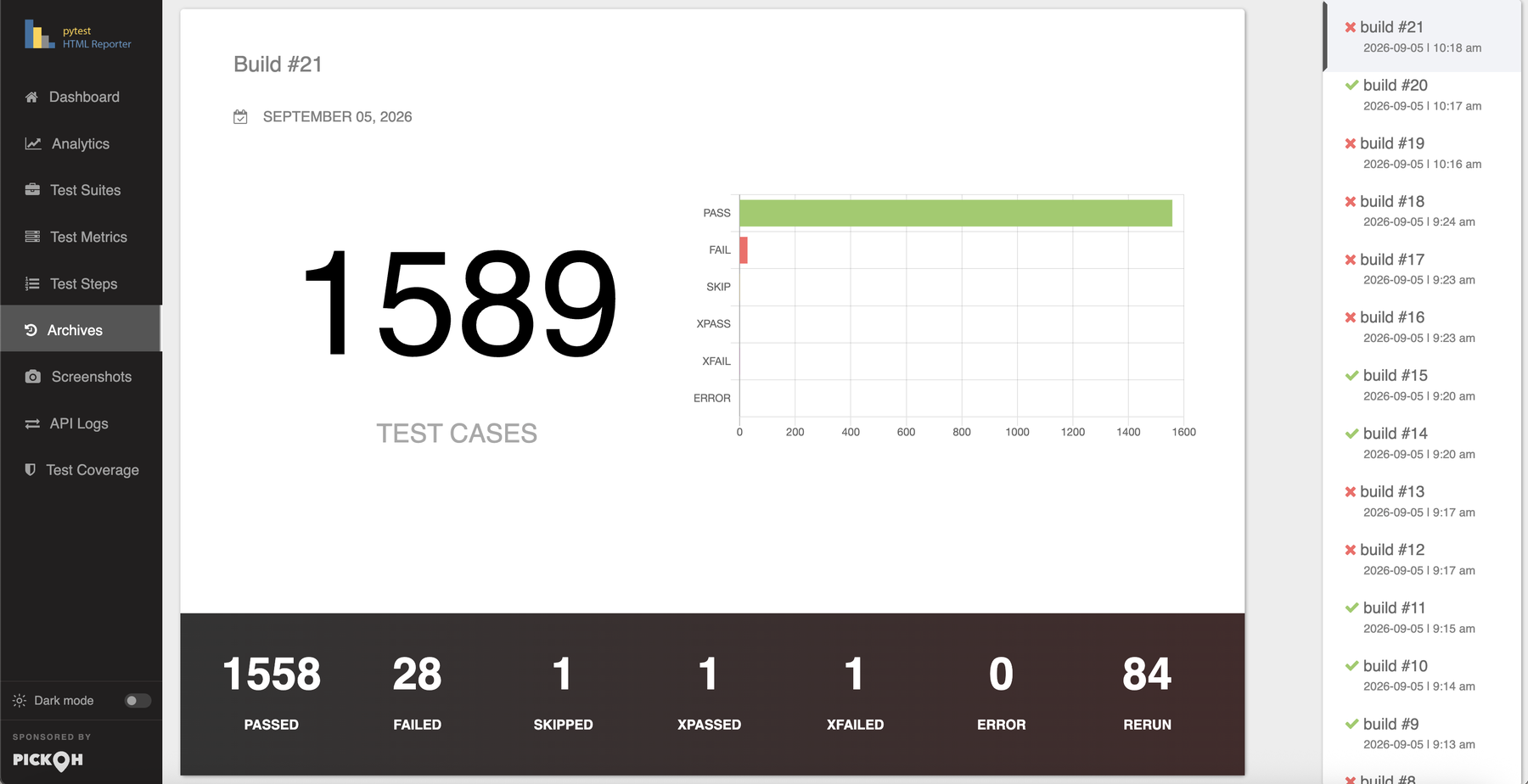
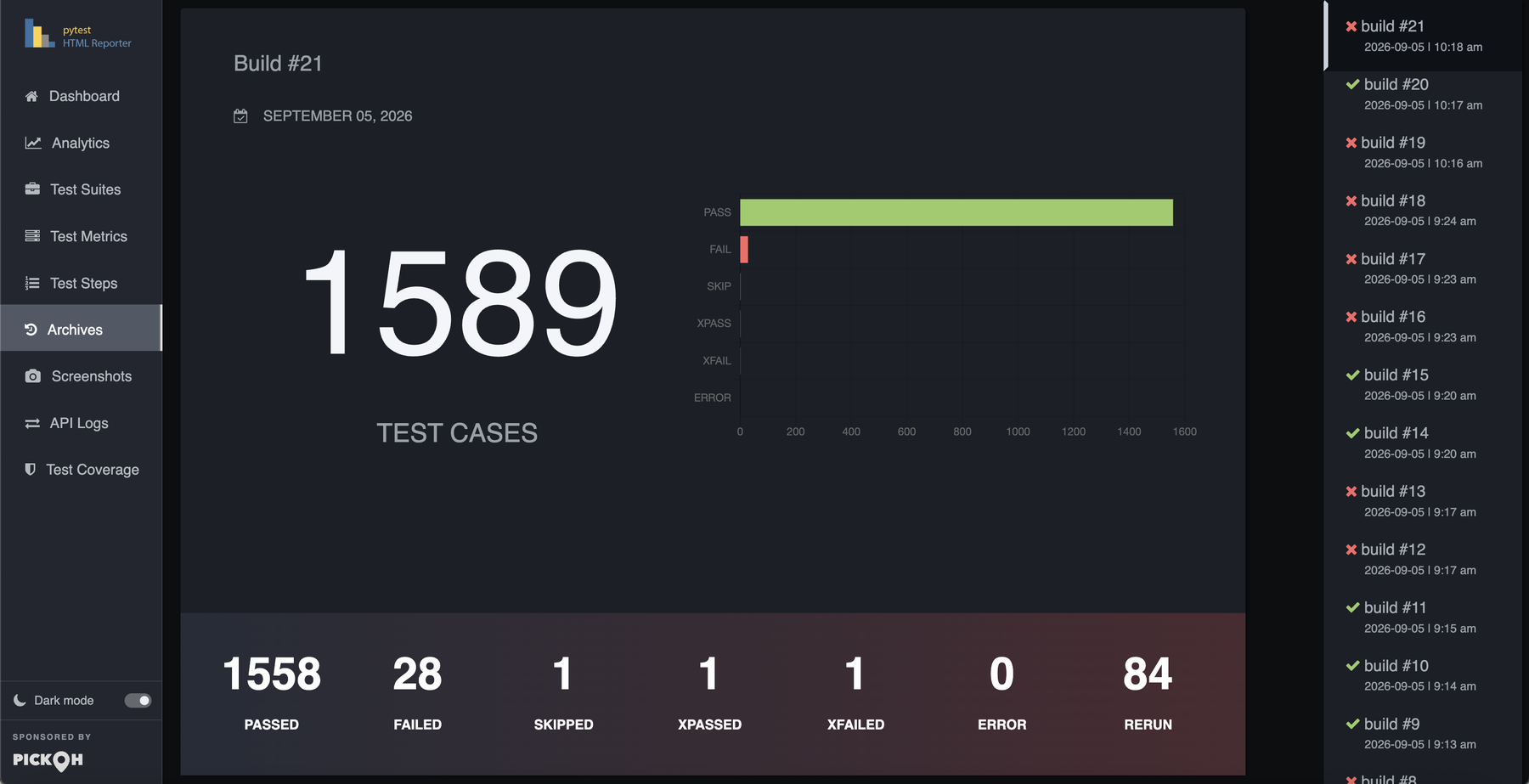
How far back the Analytics tab can read is whatever these three have kept, which
is the reason to think about the window before you need the history rather than after. The full
story — what analytics does with those builds, and how much history each view wants — is on the
analytics page.
Where to next
Everything it does
The whole feature list in one place — screenshots, steps, coverage, markers, deep links, themes, xdist — so you know what is worth turning on.
Read moreA tour of the report
Tab by tab and column by column: what the dashboard charts mean, what the metrics table can do, and where each thing you attached ends up.
Read moreThe Python API
Six functions — attach, attach_text, attach_json,
attach_api, attach_file and step — for the evidence
only the test can hand over.
Run it in CI
The dedicated GitHub Action, and what changes when the run is on a build agent instead of your machine.
Read more